3.8. Log
A tap on the Log button in the main SafePages view shows the Document Log. See SafePages.
3.8.1. Documents
The Document Log shows all documents the user printed to PRODUCT_NAME, and which were subsequently exported or Proxy-Printed. For a detailed description of this screen see Documents in the Admin Web App chapter.
Some Document Type selections are hidden, depending on user role, privileges and resource (Queue, Printer) availability.
Type PDF is hidden when user has no privileges to Send and Download SafePages.
Type Ticket is hidden when user is not a Job Ticket Creator.
Type Print is hidden when user is not a Print Job Creator, or has no access to a printer.
The following configuration property applies:
Configuration property |
Description |
|---|---|
webapp.user.doclog.select.type.default-order |
A comma separated priority list of enum values |
See Config Editor on how to set these items.
The Letterhead selection is hidden when user has no Letterhead privileges. The Queue selection does not hold disabled or inactive (reserved) queues (/mailprint, /webprint). The Printer selection holds accessible Printers only (Job Ticket “Printers” are not shown).
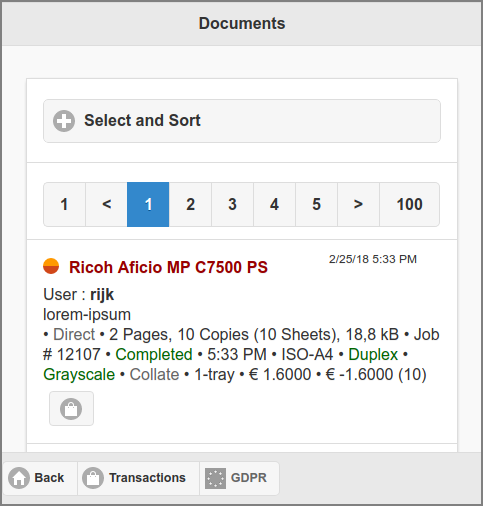
User Web App: Log - Documents
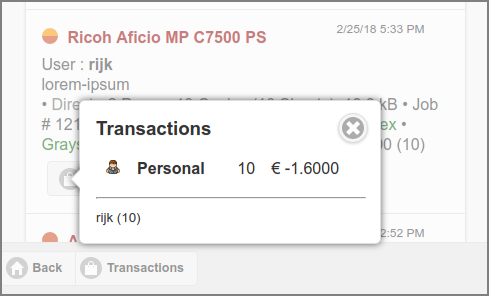
User Web App: Log - Document Transactions
Press the transaction button in the document item to see invoicing details. Press the Transactions button in the footer bar to view the Transaction List, and the GDPR button to view the GDPR Dialog.
Note
Depending on User Privileges the Transactions button might not be present.
3.8.1.1. Queue Journal
If the Queue Journal function is enabled a print-in document is journaled, as indicated by a small icon at the left of the document title. See Document Store and Edit Queue.
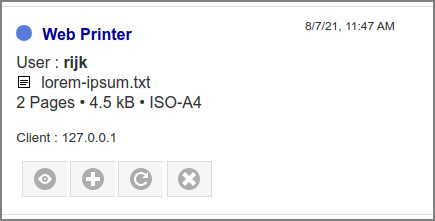
User Web App: Log - Queue Journal
Depending on User Privileges buttons are displayed to Download, Select (add to or replace the SafePages) and Delete the journal.
Note
When viewed in the Admin Web App the journal can not be Selected.
3.8.2. Transactions
The Transaction Log shows the financial transactions on the user’s account.
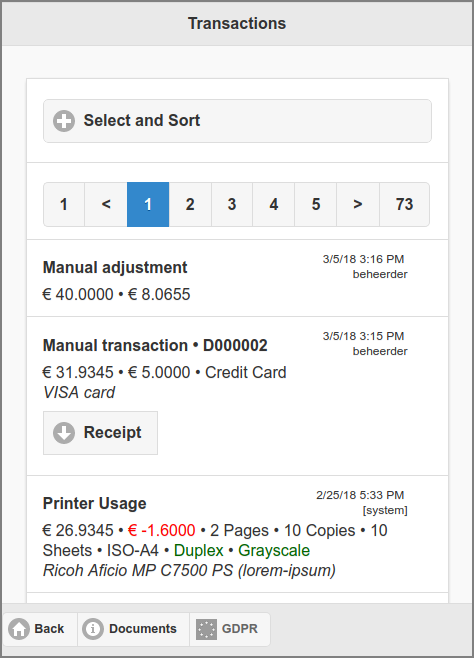
User Web App: Log - Transactions
Each entry in the list has the following lines.
A header with the transaction type.
The resulting account balance with the transaction amount.
Extra information is added depending on the transaction type.
A Manual Transaction denotes the Receipt Number in the header and has a Receipt button to download the receipt as PDF.
Some samples of other transactions:
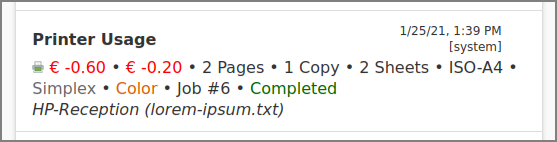
User Web App: Log - SavaPage User Account Transaction
If PaperCut Personal User Account is enabled, the amount is prefixed with a SavaPage icon.
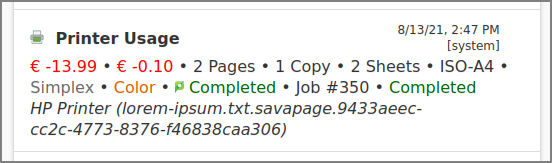
User Web App: Log - Proxy Print PaperCut Transaction
A Proxy Print to a PaperCut managed printer where PaperCut Printer Costs were leading.
Note the SavaPage (print supplier) and PaperCut (third-party print manager) icons.
For a sample screenshot of the document log, see Admin Web App: Document - Proxy Print PaperCut Costs.
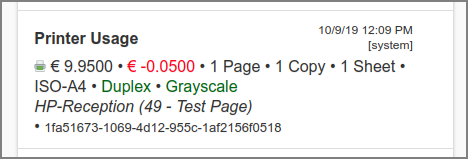
User Web App: Log - IPP Routing Transaction
A Printer Usage transaction due to IPP Routing, with QR code “1fa51673-…” delivered by an IPP Routing Plug-in.
Note that in this case PaperCut Personal User Account is enabled, since the amount is prefixed with a SavaPage icon.
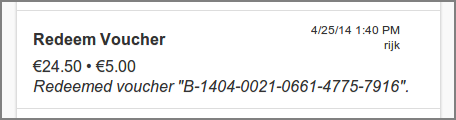
User Web App: Log - Voucher Transaction
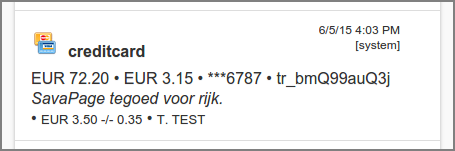
User Web App: Log - Payment Gateway Transactions (creditcard)
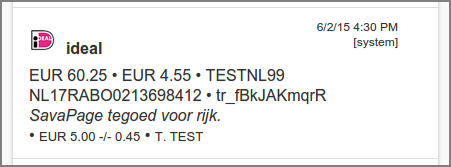
User Web App: Log - Payment Gateway Transactions (ideal)
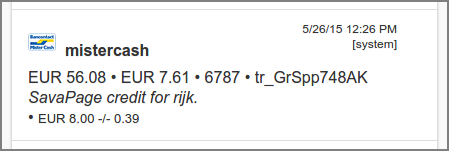
User Web App: Log - Payment Gateway Transactions (mistercash)
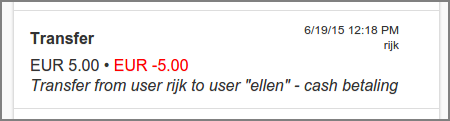
User Web App: Log - User Transfer Transaction (to)
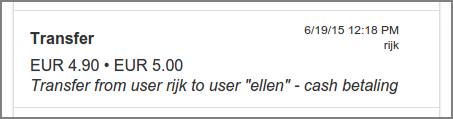
User Web App: Log - User Transfer Transaction (from)
Push the Documents button in the footer bar to view the Document List, and the GDPR button to view the GDPR Dialog.
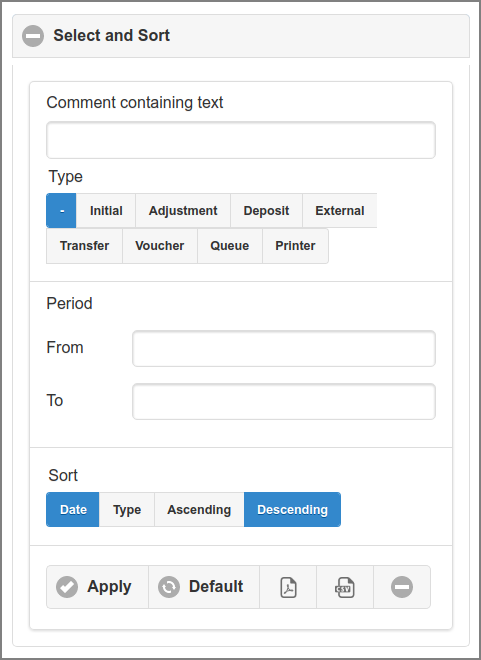
User Web App: Log - Transactions
Transactions can be filtered and sorted as follows:
Comment containing text : selects transactions with comments containing a text snippet.
Type : selects – (all) or a single one of the following transaction types:
Initial : Balance allocated when account was created.
Adjustment : Manual adjustment by an administrator. See Financial.
Deposit : Adjustment of balance at a Point-of-Sale.
External : Increment of balance by transferring funds from an external account. See Transfer Money.
Transfer : Increment or decrement of balance by transferring credit to another user. See Transfer Credit.
Voucher : Increment of balance by redeeming a voucher.
Queue : A delegator transaction as part of a delegated Print where the document and delegate info is retrieved from an External Supplier and printed to a Proxy Printer managed by a Third Party Print Management System (TPPMS). The transaction appears as Queue Usage item in the list. Print status and cost are retrieved from the TPPMS. The cost will be 0.00 when the status is “Pending (external)”, “Expired” or “Canceled”. When status is “Completed” the cost will be known. Currently External Supplier TPPMS PaperCut is supported.
Printer : A transaction for proxy printing. When the Proxy Printer is solely managed by SavaPage the costs are according to the specified Printer Costs. If the Proxy Printer is additionally managed by a Third Party Print Management System, status and cost are retrieved from that system and displayed just like the previously discussed Queue Usage item.
Select a creation Period by entering a From and To date. Tap the x button after a date to clear it. See this example Data Selection Dialog.
Transactions can be sorted Ascending or Descending by creation Date or Type.
The list is refreshed, and the selection applied, after you push the Apply button.
The Default button resets the selection items to their default values.
The PDF and CSV buttons download the Transaction List in their respective formats, using the selection item values.
See POST /reports/accounttrx on how to download these lists with the RESTful Admin Service.
The – icon at the top collapses the Select and Sort section.