3.10. User Details
3.10.1. Buttons
The User Details dialog shows the Pagometers and Financial status of the user, and is shown after a tap on the User button in the footer of the main panel.
Note
Depending on User Privileges the Financial section might not be shown.
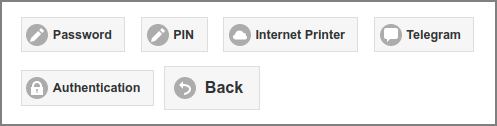
User Web App: User Details - Buttons
For an Internal User a Password button is shown, when a password has been set (i.e. not erased): see Password. A tap on the button will show the Password Reset Dialog.
If users are allowed to change their PIN a PIN button is shown. A tap on the button will show the PIN Reset Dialog. Also see User Authentication.
If an Internet Print
protocol://authorityis present the Internet Printer button is shown. A tap on the button will show the Internet Printer Device URI.If Telegram Messaging is enabled the Telegram button is shown. It leads you to the Telegram Configuration dialog.
Warning
Telegram support is deprecated and will be removed in a next release.
If 2-step Verification is enabled the Authentication button is shown. It brings you to the Authentication Dialog.
3.10.2. Internet Printer
Users can copy/paste their private
Internet Print Device URI
for driver print from this dialog. The SAVAPAGE.ppd file can be
downloaded.
This dialog also shows the URL and credentials for macOS, Chrome OS and the SavaPage Android Print App.
The UUID can be replaced with a new one by pressing the UUID button.
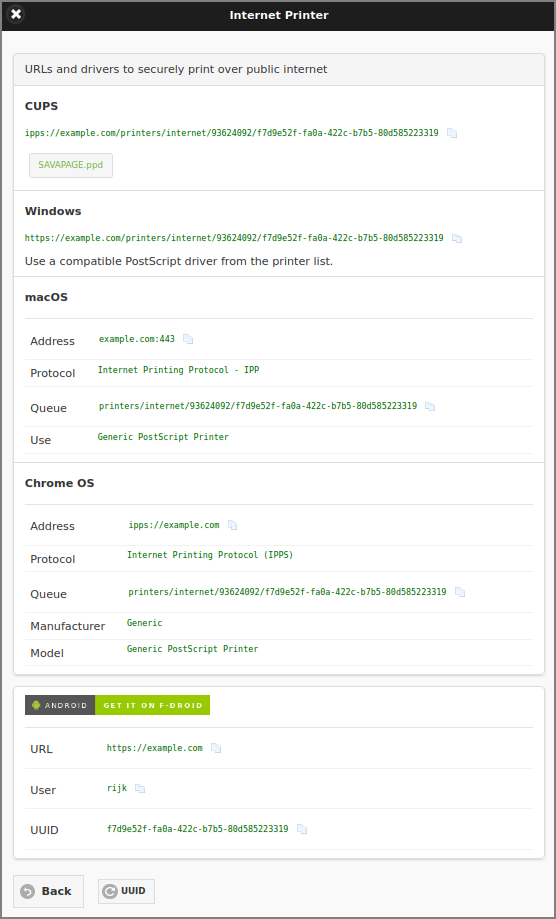
User Web App: User Details - Internet Printer
3.10.3. Telegram Configuration
Warning
Telegram support is deprecated and will be removed in a next release.
This dialog contains a step by step procedure to configure Telegram Messaging for a Telegram ID owned by a user.
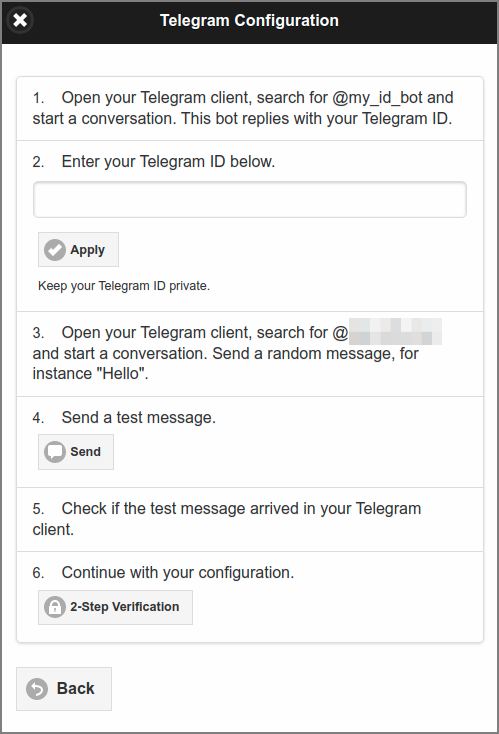
User Web App: User Details - Telegram Configuration
3.10.4. Authentication
In this dialog 2-Step Verification can be Enabled, and the user can Replace their TOTP code. To ensure that the TOTP code is scanned/copied correctly, the user must enter a verification code before pressing the Apply button.
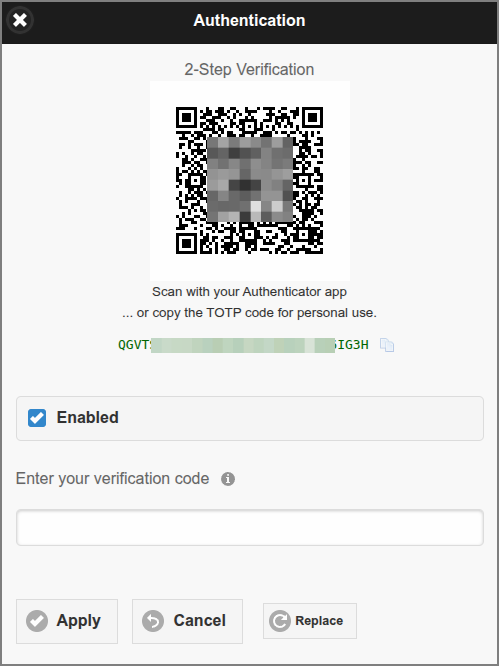
User Web App: User Details - Authentication
Note
If 2-Step Verification is Enabled and User Telegram Configuration is applied, the Send code to Telegram option is visible: if checked, no Authenticator app is needed and verification codes are send to the user’s Telegram ID. However, at this time, you must enter a verification code generated by an Authenticator app.
Warning
Telegram support is deprecated and will be removed in a next release.
3.10.5. Pagometers
This section shows the personal Pagometers of the user, and are analogous to the ones in the Admin Dashboard as shown in Admin Web App: Dashboard - Pagometer and Admin Web App: Dashboard - Environmental Impact.
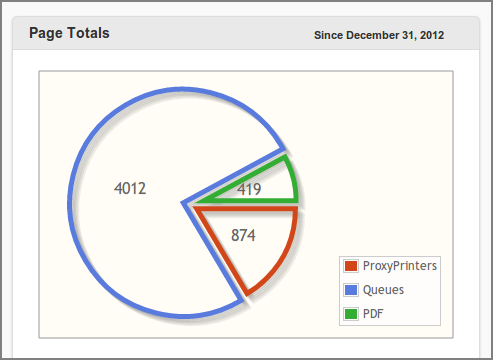
User Web App: User Details - pagometer
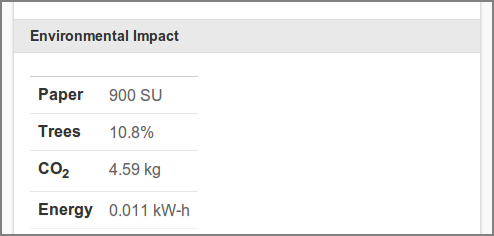
User Web App: User Details - Environmental Impact
The Environmental Impact section can be hidden with configuration property in table below.
Configuration property |
Description |
|---|---|
webapp.user.show-env-info |
Set to |
See Config Editor on how to set these items.
3.10.6. Financial
This section shows the financial status of the user account and ways to increment the account balance from an external account.
Note
Depending on User Privileges the section for account transactions might not be shown.
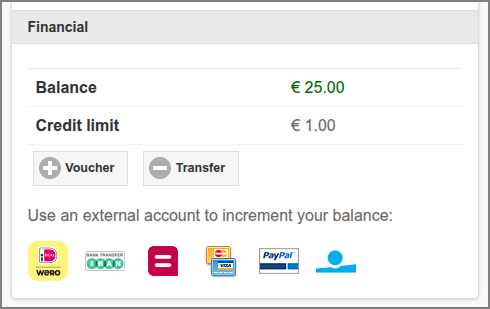
User Web App: User Details - Financial
Balance : the user’s account balance.
Credit limit : see Financial.
If PaperCut Personal User Account is enabled, the Balance label is prefixed with the PaperCut icon and Credit limit is not shown.
A push on the Voucher button opens the Redeem Voucher dialog. The visibility of this button is dependent on an application setting.
A push on the Transfer button opens the Transfer Credit dialog. The visibility of this button is dependent on an application setting and a Balance amount greater than zero.
If a Generic Payment Gateway Plug-in is enabled, an icon is shown for each active payment method. Pushing (clicking) the payment method icon will pop-up the dialog to Transfer Money.
Note
The dedicated Payment Web App can be used if a Generic Payment Plug-in is enabled.
3.10.7. Redeem Voucher
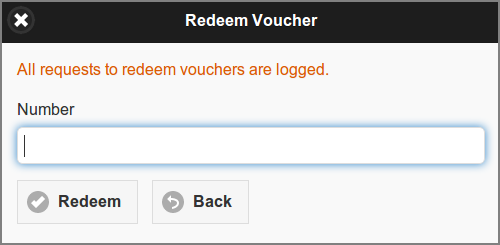
User Web App: Redeem Voucher
Enter the voucher Number in the dialog box and press Redeem. Make sure to enter the number exactly as listed on the voucher including any dashes (-).
If you entered the number correctly, the value as shown on the voucher will be transferred to your account and a new entry will list in your transaction log.
3.10.8. Transfer Credit
This dialog is used to transfer funds to another user.
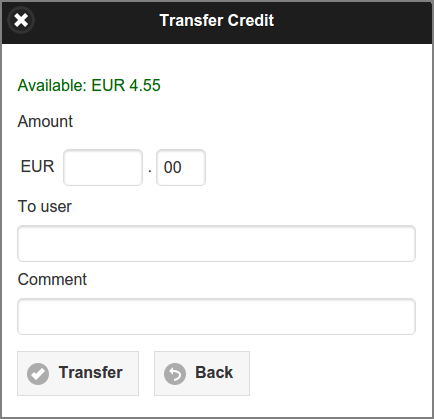
User Web App: Transfer Credit
Enter the Amount in currency units and cents. The available amount is shown in green at the top.
Enter the To user id and an optional Comment. A Quick Search for a User ID can be configured for this dialog.
When you press the Transfer button the amount will be transferred from your account to the account of the target user. New entries will list in your transaction log and the log of the target user.
To configure this dialog see Transfer Funds.
3.10.9. Transfer Money
This dialog is used to transfer money from an external account. The figure below shows a dialog in preparation for a credit card transaction. Other payment methods are available as defined by the active Generic Payment Gateway Plug-in. See for example Mollie Payment Plug-in.
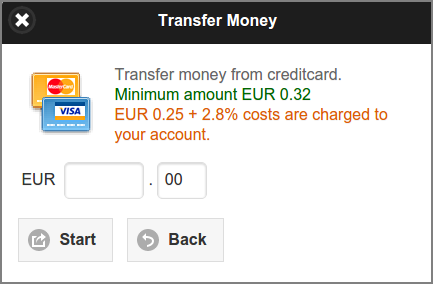
User Web App: Transfer Money from Credit Card
Enter the amount in currency units and cents, in this case EUR.
Press the Start button to start the payment transaction.