
3. User Web App
Table of Contents
The User Web App can be reached at https://savapage:8632/. For
all URL options see URL Cheat Sheet.
Important
When using the User Web App concurrently with the User Client and Proxy Print Authentication you are strongly advised to use an external database like PostgreSQL. See Using an External Database.
3.1. Login
3.1.1. Dialog
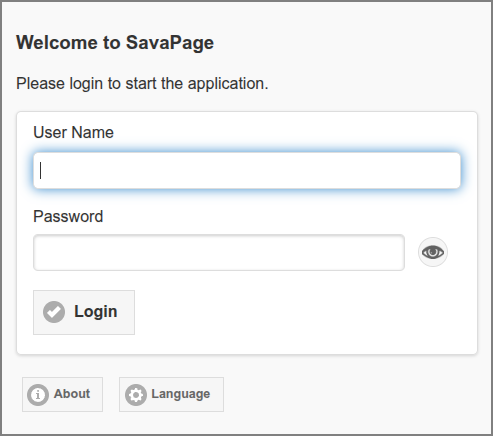
Web App: Login Dialog
Note
When a user opens the Web App the login dialog is skipped when an Authentication Token is present in local storage of the browser. The login dialog is also skipped when the Web App is opened from a trusted and authenticated User Client or with a One-Time Authentication Token.
For a description of the global user authentication defaults see User Authentication.
The language of the dialog defaults to the language setting of the browser.
You can overrule the default language and country or preselect a user by using the URL parameters. See URL Cheat Sheet.
Version and copyright information is shown when you press the About button. See About.
You can choose an alternative language by pressing the Language button. See Select Language.
The top of the Login dialog can be customized: see Custom HTML.
Use the 👁 button on the right side of the Password entry field to show/hide the password.
Login Alternatives appear at the bottom of the dialog.
Rate Limiting is applied to login failures.
Some invariants:
Only a Person can login.
Disabled users are not allowed to log in.
The internal
adminuser is not allowed to log in as user.As long as system setup is needed user login attempts are blocked with a message saying “Application setup is required”.
When the system is in Maintenance Mode, access is restricted to users with Administrator role. Regular users are shown a message explaining the situation at this Login dialog, or after login in the authorized session.
Tip
User Name can be an alias. See User Name Aliases.
3.1.2. About
The About dialog shows version and copyright information. The top of the dialog can be customized: see Custom HTML.
Note
The dialog contains a Printer Driver section with a download link for
the CUPS SAVAPAGE.ppd file. This
section can be enabled or disabled by setting the configuration key
webapp.about.driver-download.enable to Y or N.
See Config Editor on how to change this value.
3.1.3. Select Language
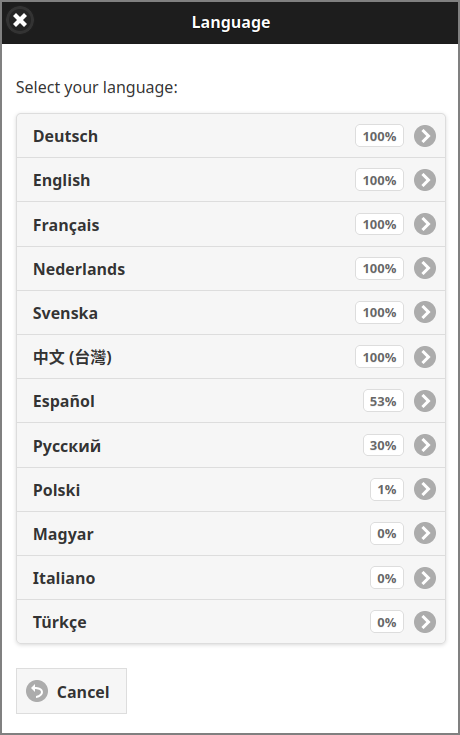
Web App: Select Language Dialog
At the moment English, French, German, Swedish, Chinese (Traditional, Taiwan) and Dutch are fully supported. Press the language of your choice. This will reload the login dialog in the newly selected language.
Press Cancel to return to the login dialog.
Note
You can use the webapp.language.available configuration property
to enter a comma separated list of selectable ISO 639 language codes.
For instance: de,en,fr,es,ru,nl. See Config Editor
on how to enter this value.
When the list is restricted to a single language, the Language button is not shown in the Login dialog, and the Web App Locale is set to the single available language.
3.1.4. Self Registration
If User Self Registration is enabled a Register button is displayed.

Web App: Register Option
If Register is pressed, registration data can be entered.
Note
Rate Limiting is applied before the Registration dialog is shown. This could result in a message that registration is currently unavailable. In that case, try again later.
Press Send for verification to the specified Email adress. This address must match one of the approved domains. See Internal Users. For email customization see UserRegVerification.
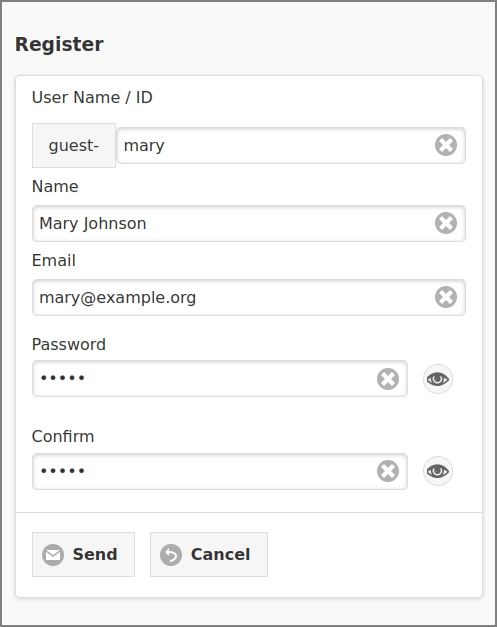
Web App: Register Dialog
A prefix, in this case guest-, is applied to the User Name / ID to distinguish registered Internal Users from users synced from a User Source. The prefix and other parameters are held as configuration property, as explained in Create Internal User.
By pressing Send a verification link is send to the specified Email adress. The address must match one of the approved domains. See Internal Users. For email customization see UserRegVerification.
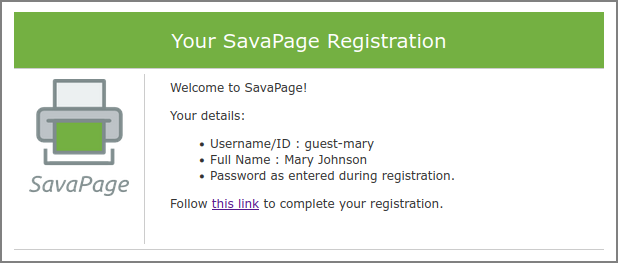
Self Registration Verification Email
The status of the verification (Pending or Expired) is shown in the User List. See Registration Requests.
After the user follows the link in the verification email, the registration is completed.
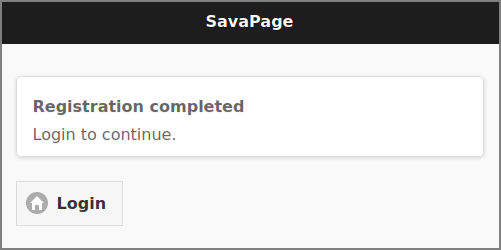
Self Registration Completed
3.1.5. Single Web App Session
A warning message is shown when a desktop [1] user tries to open the same Web App type a second time in the same browser instance. In rare occasions, for instance, due to network connectivity issues, this statement might be false. In that case a Login will bring you back on track.
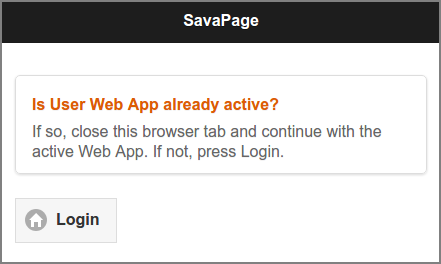
Same type Web App session detected
When a user opens a second Web App session of another type this message is shown:
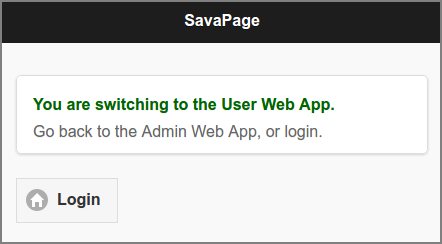
Web App type change detected
In both situations, either go back to the active Web App session or press Login to login to the intended Web App type. This will invalidate any other SavaPage session in the same browser instance.
3.1.6. Card Self Association Dialog
If an unknown card is swiped, and NFC Card Self Association is enabled, the user is presented this dialog to associate the new card.
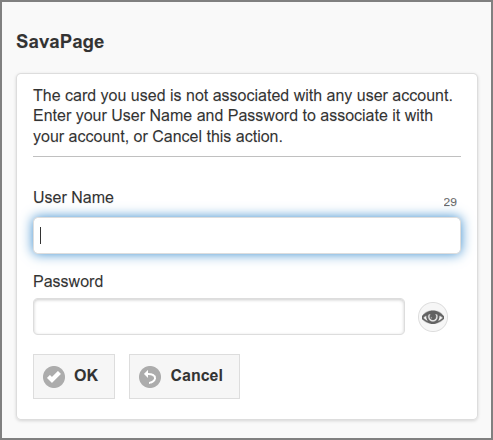
Web App: Login Dialog - Card Self Association
There is a time limit to enter the User Name and Password.
The remaining seconds are shown and when counted down to zero the dialog is
automatically closed. The time limit (seconds) is contained in configuration key
webapp.card-assoc.dialog-max-secs. See Config Editor on how to change this value.
3.1.7. 2-Step Verification
If a user enabled 2-Step Verification, they are prompted to enter their verification code, after a successful first login step.
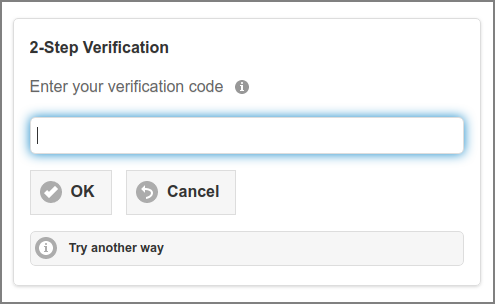
Web App: Login Dialog - 2-Step Verification
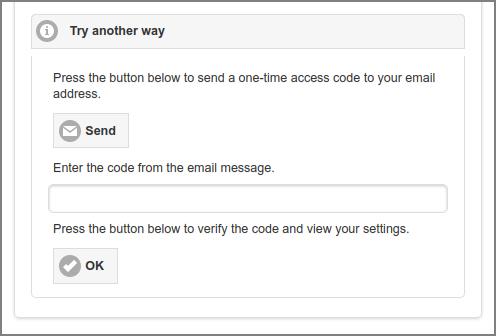
Web App: Login Dialog - 2-Step Verification (recovery)