
20. Customization
Table of Contents
SavaPage can be customized to match your organizational identity. Customization makes SavaPage an integral part of your organization rather than an external tool.
Note
Customization is an advanced topic. If you need help, contact your SavaPage Service Provider.
20.1. Custom Web App
20.1.1. Introduction
Web App customization is controlled in the
/opt/savapage/server/custom/web.properties file. An annotated
web.properties.template file is installed for your convenience.
Tip
Each key value in the /opt/savapage/server/custom/web.properties file can be
overruled at runtime by specifying the key value in the Config Editor.
If the configuration key value is left empty customization falls back to the
value in the properties file.
20.1.2. Web App Look-and-feel
The default look-and-feel of Web Apps has a simple drawing of green
hills with a blue sky as background. You can disable this default by
setting the value of the webapp.style.default.enable config item to
N. See Config Editor on how to change this value.
The look-and-feel of Web Apps can be customized by theming and CSS tailoring.
20.1.2.1. Web App Theming
SavaPage uses jQuery Mobile as user
interface system to create responsive Web Apps that are accessible on
all smartphone, tablet and desktop devices. jQuery Mobile supports
theming. Themes can be built online with the ThemeRoller for
Mobile tools and deployed in
SavaPage by downloading the zipped theme file and extracting the
content of the /themes/ folder into the
/opt/savapage/server/custom/web/themes directory.
The web.properties file contains entries to specify a separate CSS
theme for each Web App, as shown in the example below:
webapp.theme.admin=admin.min.css ①
webapp.theme.jobtickets=jobtickets.min.css ②
webapp.theme.pos=admin.min.css ③
webapp.theme.user=user.min.css ④
- 1:
CSS theme file name for the Admin Web App.
- 2:
CSS theme file name for the Job Tickets Web App.
- 3:
CSS theme file name for the Point-of-Sale Web App.
- 4:
CSS theme file name for the User Web App.
SavaPage uses swatch [1] a for all pages and dialogs. Swatch b is used for page and dialog headers, and in some cases for list dividers.
You can store a theme in a subdirectory of
/opt/savapage/server/custom/web/themes and use its relative path
to reference a CSS theme file.
20.1.2.2. Custom CSS
Advanced tailoring can be done with custom CSS files. They are rendered as last, so they have the final say about styling.
The web.properties file contains entries to specify a custom CSS
file for each Web App, as illustrated in the example below:
webapp.custom.admin=admin.css ①
webapp.custom.jobtickets=jobtickets.css ②
webapp.custom.pos=pos.css ③
webapp.custom.user=user.css ④
- 1:
Custom CSS file for the Admin Web App.
- 2:
Custom CSS file for the Job Tickets Web App.
- 3:
Custom CSS file for the Point-of-Sale Web App.
- 4:
Custom CSS file for the User Web App.
Custom CSS files are stored in /opt/savapage/server/custom/web/.
Subdirectories are allowed, and you can use their relative path to
reference the custom CSS file.
Any content placed in /opt/savapage/server/custom/web/, such as
images, can be accessed in CSS via a URL beginning with
/custom/web/. For example if a file named logo.png is placed in
/opt/savapage/server/custom/web/images it can be accessed via the
URL /custom/web/images/logo.png
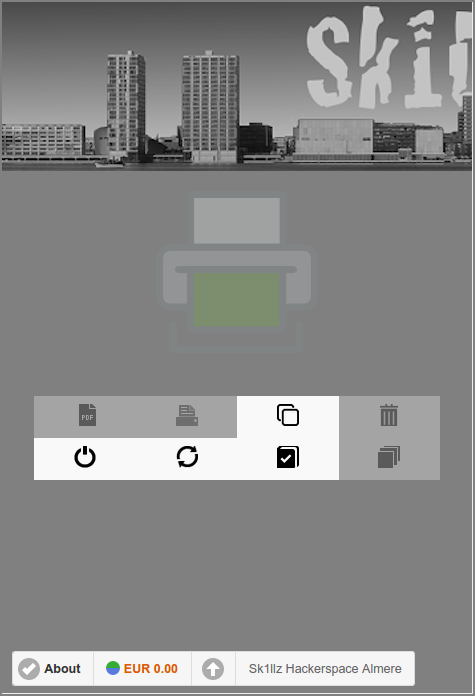
User Web App: Custom CSS - Sample #1
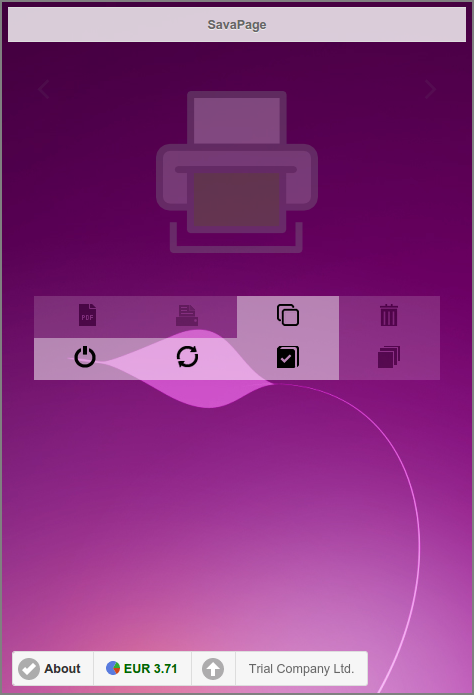
User Web App: Custom CSS - Sample #2
20.1.2.3. Custom HTML
Extra tailoring can be done with HTML snippet files to be injected into
the Web App. Injection points are defined at the top of the Login and
About Page for each Web App. Snippet files must be placed in the
/opt/savapage/server/custom/html/ directory. The default snippet
is for the English locale. You can create i18n variants by appending the
locale to the base file name. For example: user-login_de.html is the
German variant of user-login.html.
Snippet files are assigned in the web.properties file, as shown
below. Snippets must refer to the default English language variant. At
runtime the locale variant (when applicable and available) is used.
webapp.html.admin.about=admin-about.html ①
webapp.html.admin.login=admin-login.html

webapp.html.jobtickets.about=jobtickets-about.html ②
webapp.html.jobtickets.login=jobtickets-login.html

webapp.html.mailtickets.about=mailtickets-about.html ③
webapp.html.mailtickets.login=mailtickets-login.html

webapp.html.payment.about=payment-about.html ④
webapp.html.payment.login=payment-login.html

webapp.html.pos.about=pos-about.html ⑤
webapp.html.pos.login=pos-login.html

webapp.html.printsite.about=printsite-about.html ⑥
webapp.html.printsite.login=printsite-login.html

webapp.html.user.about=user-about.html ⑦
webapp.html.user.login=user-login.html
- 1:
snippets for User Web App About Dialog and Login Page.
- 2:
snippets for Job Tickets Web App About and Login Page.
- 3:
snippets for Mail Tickets Web App About and Login Page.
- 4:
snippets for Payment Web App About Dialog and Login Page.
- 5:
snippets for Point-of-Sale Web App About Dialog and Login Page.
- 6:
snippets for Print Site Web App About Dialog and Login Page.
- 7:
snippets for User Web App About Dialog and Login Page.
You can store custom HTML files in a subdirectory of
/opt/savapage/server/custom/html/ and use its relative path to
reference the HTML file.
Note
The keys in the web.properties file are also present as
Configuration Property, the latter taking precedence over the former.
See Config Editor on how to enter these property values.
Important
Please use this template when creating snippets for Login pages. The CSS classes are needed to toggle visibility of sub-parts in different Login modes.
<h3 class="sp-login-dialog">Header when in Login Mode</h3>
<h3 class="sp-login-dialog-assoc">Header when in Card Self Association Mode</h3>
<div class="sp-login-dialog">
    <!-- Your custom HTML when in Login Mode -->
</div>
20.1.2.4. Custom i18n
In rare cases an application manager might want to override i18n text of Web App pages, dictionaries or messages.
Overrides of packaged i18n *.xml files are placed in
/opt/savapage/server/custom/i18n/. Each override must be located in
a subdirectory with a path identical to the original *.xml file. The
content of the override file can be restricted to just the overridden
keys.
Overrides of packaged *.properties.xml files (Web App HTML parts)
must have a *.xml name without the “.properties.” part. For
all other *.xml files the name can remain the same. The base name of
English i18n files must end with “_en”.
Example:
/opt/savapage/server/custom/i18n/org/savapage/core/i18n/PrintOutNounEnum_de.xml
/opt/savapage/server/custom/i18n/org/savapage/core/services/impl/messages_de.xml
/opt/savapage/server/custom/i18n/org/savapage/server/pages/Login_de.xml

/opt/savapage/server/custom/i18n/org/savapage/core/i18n/PrintOutNounEnum_en.xml
/opt/savapage/server/custom/i18n/org/savapage/core/services/impl/messages_en.xml
/opt/savapage/server/custom/i18n/org/savapage/server/pages/Login_en.xml
Custom i18n must be activated in server.properties with:
webapp.custom.i18n=true
Warning
Custom i18n is an advanced feature and should be implemented in consultation with SavaPage Tech Support.
Note
Added or changed custom i18n files have immediately effect when the i18n cache is cleared in the Admin Web App About > Java section, or when SavaPage is restarted.
Tip
Custom i18n is a great way to get started with localizing SavaPage to your own region. See Notes for Translators.
20.1.2.5. Custom i18n for IPP
IPP attribute localization can be overridden with special i18n XML files. See IPP Localization.