3.6. Letterheads
A tap on the Letterhead button in the main SafePages view shows the Letterhead dialog. See SafePages.
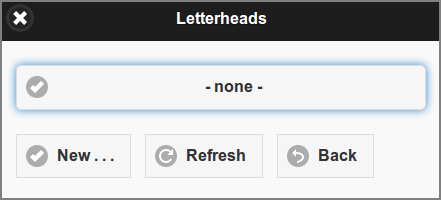
User Web App: Letterheads
Press the top button to get a pop-up list of letterheads. When a letterhead is selected from the list it can be previewed and edited. The selected letterhead acts as default in the Print and PDF dialog: see User Web App: PDF - Letterhead and User Web App: Print - Select Printer.
Press the Refresh button to rebuild the list if you suspect public letterheads were added or removed.
Press the New button to create a new letterhead from the current SafePages. All the SafePages are used for the letterhead. User Web App: Letterhead - New is an example of a fresh created letterhead.
Note
Depending on User Privileges buttons and sections for creating and editing letterheads might not be shown.
Note
If the SafePages contain DRM-restricted content the New button is not visible.
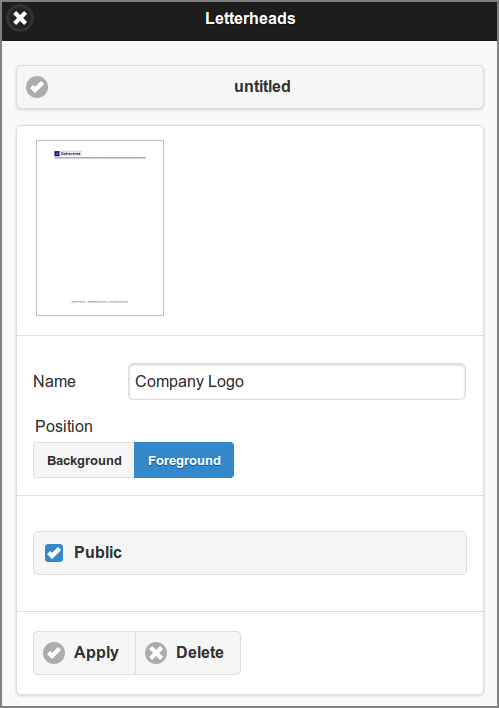
User Web App: Letterhead - New
If the letterhead document consists of one page, this page is applied to every page of the document. The letterhead page is scaled and rotated as needed to fit the input page.
If the letterhead document has more than one page, each page of the letterhead is applied to the corresponding page of the output document. If the output document has more pages than the letterhead, then the final letterhead page is repeated across these remaining pages of the output document.
Letterheads can be applied on the Foreground or Background.
Users who are administrator can mark letterheads as public by ticking the Public checkbox. Public letterheads are available for all users, but can be edited and deleted by administrators only.
The Name of a private letterhead can be edited. The Name of a public letterhead can be edited by an administrator only.
Tap on a letterhead thumbnail to get a detailed pop-up image. See User Web App: Letterhead - Detail.
Press the Apply button to commit changes or push the Delete button to remove the letterhead.
Note
For a background letterhead to be effective, SafePages should be transparent. HTML pages printed from browsers like Internet Explorer and Firefox might pose a problem here. The white background on HTML pages might act as a solid background.
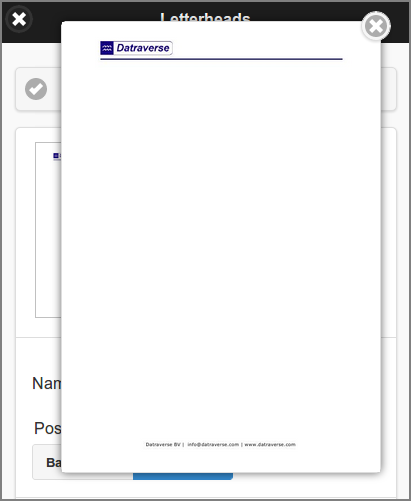
User Web App: Letterhead - Detail
Press the x button in the upper right corner, or tap outside the pop-up, to close the pop-up image.