3.9. Sort
A tap on the Sort button in the main SafePages view switches to Sort mode. See SafePages.
In sort mode pages can be rearranged and deleted.
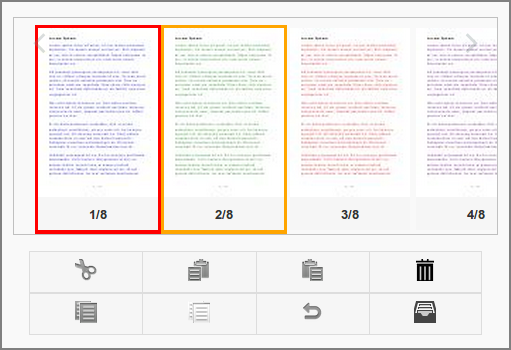
User Web App: Sort
This screen shows the result after some editing.
One cut page is shown with a red border.
Notice the mini scissor icon at the bottom of the screen, showing the page number of the cut page.
One selected page is shown with an orange border.


The footer bar shows a scissor icon with a page number of the cut, and a pin icon with the page number of the selected page.
These are the actions that can be performed on page images:
A tap on a single page will (un)select it.
A tap on an aggregated page will expand it. Aggregated pages are described at User Web App: SafePages - Aggregated.
Here is a summary of the buttons and their function:
Button |
Function |
|---|---|

|
More actions |
|
More actions pop-up |

|
Unselect all |

|
Cut |

|
Undo |

|
Left Paste |

|
Right Paste |

|
Delete |

|
Inbox |
Note
By default a fixed button text is shown on mobile devices only: on desktops a hover text is shown. See SafePages on how to change this behavior.
Caution
After SafePages are sorted any Fast Print will fail and all SafePages will be cleared as a result. Please use a Hold Print instead.