4.14. About
4.14.1. Panel
After a tap on the About button in the main menu this panel is shown. See Menu.
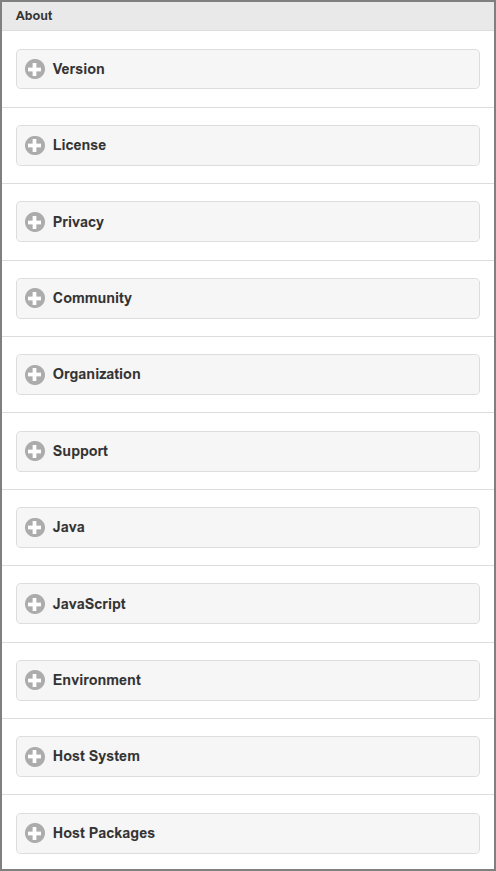
Admin Web App: About
A tap on one of the options expands (or collapsed) the underlying section. The sections are described in the paragraphs below.
4.14.2. Version
The Version identifies the application, database and files version. Please include this information when you contact support.
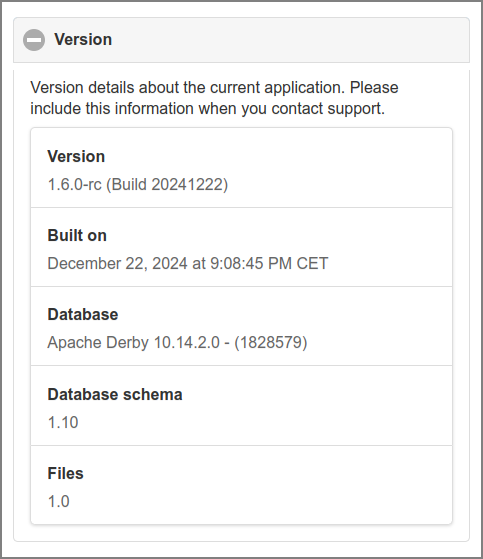
Admin Web App: About - Version
4.14.3. License
This section displays the license information with related links in green.
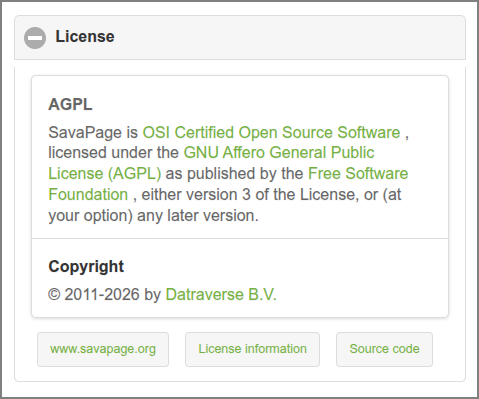
Admin Web App: About - License
4.14.4. Privacy
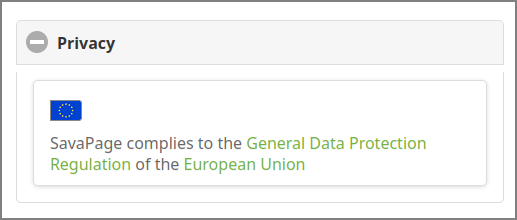
Admin Web App: About - Privacy
4.14.5. Community
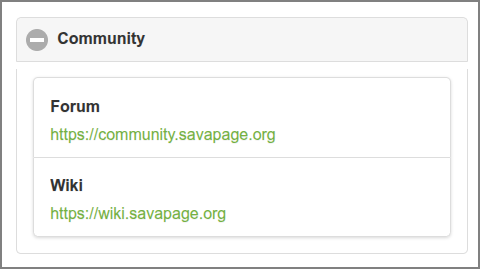
Admin Web App: About - Community
4.14.6. Organization
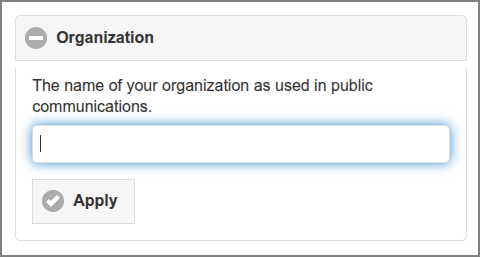
Admin Web App: About - Organization
Note
Due to Admin Privileges the Apply button might not be visible.
4.14.7. Support
The Support section shows Service Provider data from the imported Service Card.
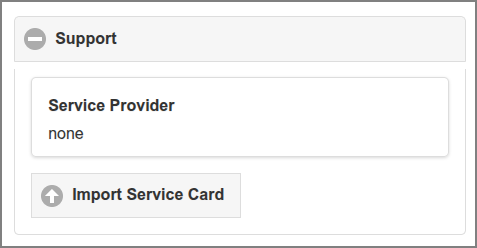
Admin Web App: About - Support
The Import Service Card button shows if the Organization name has been entered. Press the button to start the Import Dialog.
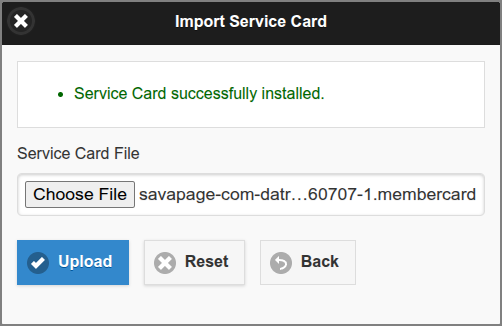
Admin Web App: About - Import Service Card
Select the Service Card file to be uploaded. The actual file selection trigger differs from browser to browser.
Press the Import button to start the import.
The progress of the import is displayed at the top of the dialog box.
Just in case, the Clear button clears the messages and selected file.
As a result Service Card information is shown, as in the example below.
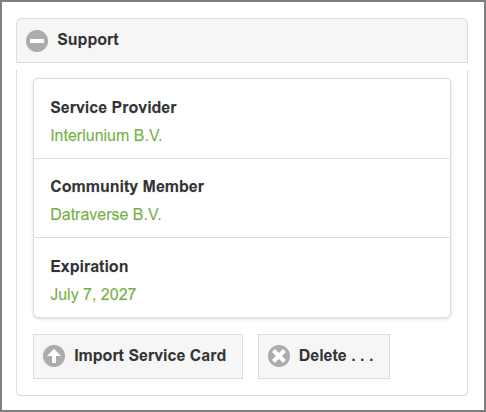
Admin Web App: About - Support - Service Provider
As you wish you can press the Delete button to remove the Service Card.
Note
Due to Admin Privileges the Import Service Card and Delete buttons might not be visible.
4.14.8. Java
This section displays Java runtime information, file locations and other server.properties.
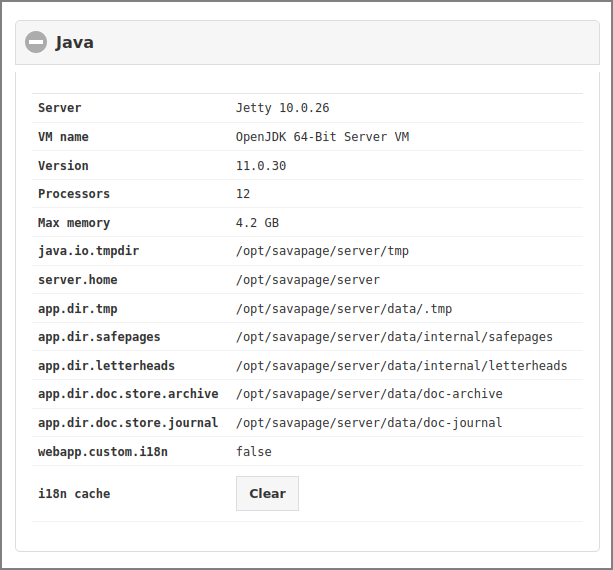
Admin Web App: About - Java
Press the Clear button to clear the i18n cache, so changes in custom i18n files immediately take effect.
4.14.9. JavaScript
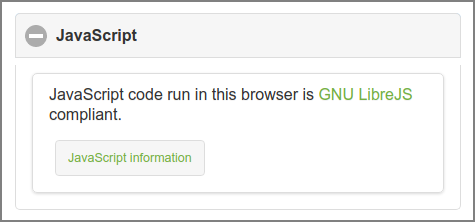
Admin Web App: About - JavaScript
JavaScript code run in this Web App is GNU LibreJS compliant. Code and license of each JavaScript module can be inspected via the “JavaScript License Information” dialog that is opened by pressing the JavaScript information button. See Libre JavaScript.
4.14.10. Environment
This section displays the SavaPage specific environment values.
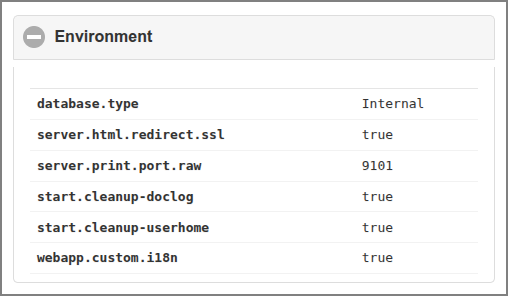
Admin Web App: About - Environment
Note
In case a CONTAINER is specified, its type is displayed on the first row. For instance: DOCKER.
See System Environment and Status.
4.14.11. Host System
This section displays host name and IP address, the name, version and architecture of the host operating system and the GNU/Linux parameters described in Linux Kernel Parameters and Linux User Limits.
4.14.12. Host Packages
This section gives version information about the required and optional third-party software installed on the SavaPage host.
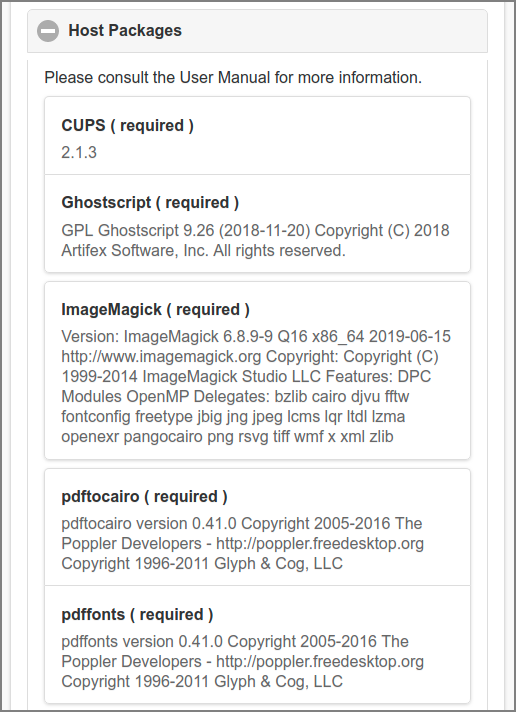
Admin Web App: About - Host Packages - 1/3
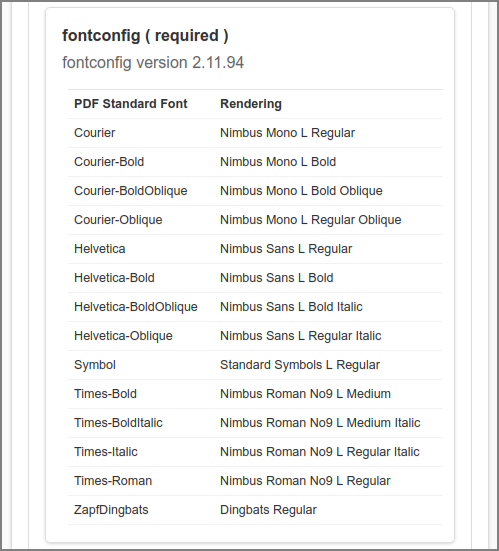
Admin Web App: About - PDF Standard Font Substitutes - 2/3
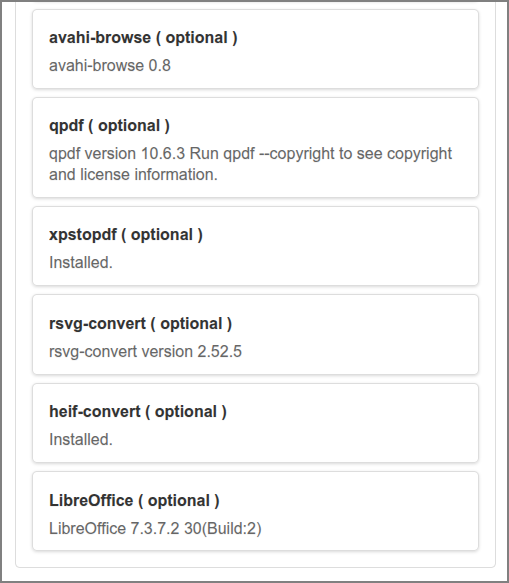
Admin Web App: About - Host Packages - 3/3
More information can be found at:
Note
Before xptopdf and LibreOffice can be used they must be
enabled. See Admin Web App: Options - Converters.