13.5. Advanced Configuration
The majority of SavaPage configuration is conducted in the Administrator Web App. Additional configuration options can be set in the server.properties and log4j.properties files, and in the Config Editor.
13.5.1. server.properties
Static server properties are configured in
/opt/savapage/server/data/server.properties and read at server
startup.
Tip
/opt/savapage/server/examples/data/server.properties.template is
a copy of the default server.properties of your current
installation. If your actual server.properties is missing
key/value pairs that are required for advanced configuration, you can
copy them from the corresponding .template file.
Note
Instead of using server.properties to configure SavaPage, the
same keys from this file can also be used as enviroment variables.
See System Environment.
13.5.2. log4j.properties
Static logging properties are configured in /opt/savapage/server/data/log4j.properties
and read at server startup.
Note
/opt/savapage/server/examples/data/log4j.properties.template is a
copy of the default log4j.properties of your current installation.
If your actual log4j.properties is missing key/value pairs that are
required for advanced configuration, you can copy them from the corresponding
.template file.
13.5.3. Alternative TCP/IP Settings
13.5.3.1. Alternative TCP/IP Interface and Ports
Alternative port are set in the server.properties file as shown in the table below.
Key |
Description |
|---|---|
|
Hostname or IPv4/6 address of the network interface the server binds to. Default: bind to all interfaces. |
|
Server http port. Default: |
|
Main https port. Connected to an externally supplied SSL certificate,
if installed.
If not installed, the port is connected to the internal self-signed
SSL certificate for local use. Default: |
|
Extra https port for local use. Connected to the internal self-signed
SSL certificate. Default: |
|
Redirect HTML of non-SSL port to SSL: |
|
The RAW Print Server port. Default: |
Important
Since SavaPage is run by user savapage, you can’t use ports below
1024, because these ports can only be bound to by the superuser
(root). If you want SavaPage Web Apps to be accessible through
port 80 and 443 at all costs, you can use
Apache
or
NGINX
server to forward (or “reverse-proxy”) requests to the IP address of
the SavaPage host and apply the server.host key to bind the
server to this single IP address.
13.5.3.2. Server ThreadPool Settings
A high reliability server process like SavaPage must reject excess requests immediately (fail fast) by using a Request Queue with a bounded capacity.
When a request is rejected, the user browser will show a diagnostic message, for example that “The connection to the server was reset while the page was loading” because “The site could be temporarily unavailable or too busy”, with the advise to “Try again in a few moments”.
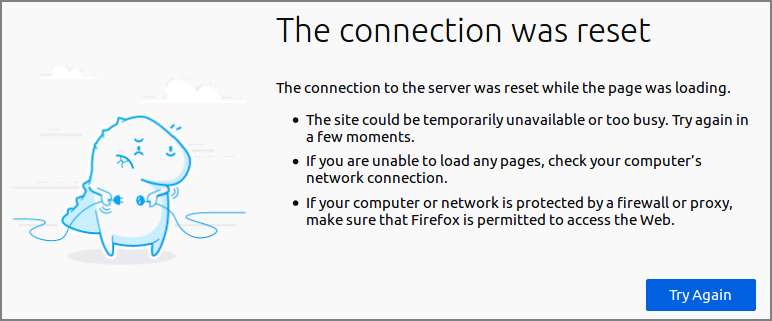
Rejected request in Firefox browser
Request Queue capacity is calculated according to a tolerable “no-response” time.
For example, if the server is capable of handling 100 requests per
second, and 30 seconds of patience is accepted by users in the event of
excessive high load, you can set the queue capacity to 30*100=3000.
If queue capacity is set too low, the server will reject requests too soon and won’t be able to handle normal load spikes. If set too high, a high load, that exceeds the processing power of the server application, will continue to stack requests on the queue. And thus, even after the load stops, the application will appear to have stopped responding to new requests as it still has lots of requests on the queue to handle.
Requests are FIFO processed by threads contained in a ThreadPool. The
maximum number of threads needed, in order to achieve the best
performance, depends on host resources (RAM and CPU cores) assigned to
the SavaPage application. The maximum value will typically be
between 50 and 500.
The keys to set thread pool and queue capacity in the server.properties file are shown in the table below.
Key |
Description |
|---|---|
|
The capacity (maximum length) of the queue holding client requests to the
server. Requests are FIFO processed by threads in the pool. Default: |
|
Maximum number of threads in the pool. Default: |
|
Minimum number of threads in the pool. Default: |
|
Maximum time a thread may be idle in milliseconds after it is terminated.
Default: |
ThreadPool settings are part of application performance tuning. See Tuning in general and Linux Kernel Parameters in particular.
Note
The browser “connection reset” message can be easily provoked by setting very low threadpool values, like:
server.threadpool.queue.capacity=4
server.threadpool.minthreads=1
server.threadpool.maxthreads=5
server.threadpool.idle-timeout-msec=10000
… and frantically pressing the F5 browser key.
13.5.3.3. Server Session Settings
Server Web Sessions expire after a certain period of inactivity: see Web Session Timeout. Expired sessions are removed by a cyclic scavenge process. The cycle interval can be set with this property:
Key |
Description |
|---|---|
|
The interval (seconds) at which expired server sessions are scavenged.
Default: |
13.5.4. HTTP/2 Settings
SavaPage supports both HTTP/1.1 and HTTP/2 communication protocols. HTTP/2 can be disabled or customized as desired. In the server.properties configuration file …
Key |
Description |
|---|---|
|
Enable HTTP/2: |
|
Maximum number of requests from an HTTP/2 connection per second. Requests
in excess of this will encounter an ERR_CONNECTION_CLOSED.
Default: |
… and in the Config Editor.
Configuration property |
Description |
|---|---|
system.http2.max-requests.warn-interval.applog.mins |
Interval (minutes) within which HTTP/2 requests that exceed the rate
controlmax are totaled and written as warning in the
Application Log. The expiration of the
interval is triggered by an HTTP/2 event that exceeds the limit.
Default: |
system.http2.max-requests.warn-interval.webapp.secs |
Interval (seconds) within which HTTP/2 requests that exceed the rate control
max are totaled and send as Real-time Activity
warning with popup message to the Admin Web App. Default: |
13.5.5. HTTP XFF Header Settings
SavaPage uses the Remote IP address from an HTTP Request as Client IP address. This usually works out well. However, when client requests go through an HTTP Proxy or Load Balancer, the Remote IP address will be the IP address of the proxy or load balancer only. In that case the Remote IP address can’t be used to define Devices or to restrict access to SavaPage objects, like Queues, Web Services, etc. To solve this issue you can set the properties below to use the HTPP X-Forwarded-For header to retrieve the correct Client IP address.
Configuration property |
Description |
|---|---|
webserver.http.header.xff.enable |
Use the X-Forwarded-For (XFF) HTTP header to retrieve Client IP address.
Values: |
webserver.http.header.xff.proxies.allowed |
A CIDR Set of allowed XFF proxies. If empty all proxies are allowed. Default: empty. |
webserver.http.header.xff.debug |
Enable X-Forwarded-For (XFF) HTTP header debugging.
Values: |
See Config Editor on how to set these properties.
13.5.6. Database Connection Settings
Database connections are both expensive to create and maintain over time. Therefore, they are an ideal resource to pool. That is just what SavaPage does, with the help of JDBC Connection Pooling [2].
The keys to set the Connection parameters in the server.properties file are shown in the table below.
Key |
Description |
|---|---|
|
Maximum number of connections in the pool. Default: |
|
Minimum number of connections in the pool. Default: |
|
Maximum time a connection may be idle in seconds after it is closed.
Default: |
|
Idle time in seconds before a connection is checked for timeout.
Default: |
|
Number of prepared SQL statements that will be cached. Default: |
Note
Database Connection Settings do not apply to the internal database.
13.5.6.1. PostgreSQL Settings
PostgreSQL ships with a basic configuration tuned for wide compatibility rather than performance. Depending on available host resources and Database Connection Settings as described in the section above, there is a good chance the default parameters are very undersized.
Tuning Your PostgreSQL Server
is an expert job, but there are two obvious parameters in
postgresql.conf [3] you need to consider:
max_connectionsmust at least be equal to database.connection.pool.max plus the value ofsuperuser_reserved_connections. For example:#---------------------------------------------------------------- # If SavaPage: database.connection.pool.max = 200 # and in this file: superuser_reserved_connections = 3 # and SavaPage is the only process accessing the Database ... #---------------------------------------------------------------- max_connections = 203 # (change requires restart) # Defaults to 3 #superuser_reserved_connections = 3
The
shared_buffersdefault of 128MB can be replaced by a higher value, depending on the total RAM in your system. For example:#---------------------------------------------------------------- # System has 16GB RAM, we take a conservative 6.25% ... #---------------------------------------------------------------- #shared_buffers = 128MB # min 128kB # (change requires restart) shared_buffers = 1024MB
A higher value allocates more shared memory during inter-process communication (IPC) between the database server and the requesting client, resulting in speedier data transfer. See PostgreSQL Memory.
Important: restart the database after changing any of these settings.
13.5.7. CUPS Settings
13.5.7.1. CUPS Notifier
CUPS notifier is a custom SavaPage binary that pushes printer and print job status events from CUPS to SavaPage server. It is the default CUPS notification method. A pull method can be activated as alternative.
Occasionally the notifier may fail to deliver job state notifications,
as can be seen reported in /var/log/cups/error_log. Since a failure
can result in no job end states being observed, a heartbeat monitor
pulls print status from CUPS for active jobs that have not been notified
since the previous beat of the heart. The heartbeat period can be
configured: see CUPS Configuration Properties.
13.5.7.2. CUPS Job Status
CUPS Job Status is handled in the following way:
Normally a print job that is stopped in CUPS, for instance because “job-completed-with-errors”, must be manually controlled (reprint, cancel, move) by an operator. However, when SavaPage identifies a stopped job it cancels it automatically.
At system (application) start-up, job status is pulled from CUPS for every proxy printed document that has not reached end-state.
See CUPS Configuration Properties on how to change the defaults.
13.5.7.3. CUPS IPP connections
See CUPS Configuration Properties on how to change defaults for the number of IPP connections to local CUPS and their IPP connect and read timeouts.
13.5.7.4. CUPS Configuration Properties
Configuration property |
Description |
|---|---|
cups.ipp.notification.method |
CUPS event notification method. Value |
cups.ipp.notification.push.notify-lease-duration |
Duration of the subscription lease (seconds) for |
cups.ipp.notification.push.heartbeat-msec |
Number of milliseconds to wait before evaluating pushed CUPS job status
notifications. Default: |
cups.ipp.notification.push.pull-fallback-msec |
Number of milliseconds since the last pushed print job status notification by
CUPS Notifier after which a
job status update is pulled from CUPS. Default: |
cups.ipp.notification.pull.heartbeat-msec |
Number of milliseconds to wait before pulling CUPS job status. Default: |
cups.ipp.job-state.cancel-if-stopped.enable |
Set to |
system.startup.cups.ipp.sync-print-jobs.enable |
Set to |
cups.ipp.local-connect-timeout-msec |
IPP connect timeout in milliseconds on local CUPS. Default: |
cups.ipp.local-socket-timeout-msec |
IPP read timeout in milliseconds on local CUPS. Default: |
cups.ipp.max-connections |
Max number of IPP connections on CUPS. Default: |
cups.ipp.exception.stacktrace |
Set to |
See Config Editor on how to set these properties.
13.5.8. Server-side Download
A Web Page or Document can be printed by a Drag & Drop of its URL. In that case its content is server-side downloaded and rendered as PDF.
Configuration property |
Description |
|---|---|
download.connect-timeout-msec |
Timeout in milliseconds until a connection is established. Default: |
download.socket-timeout-msec |
Timeout in milliseconds to receive data from remote host after the connection
is established, i.e. maximum time of inactivity between two
data packets. Default: |
download.max-connections |
Max number of download connections. Default: |
download.max-connections-per-route |
Max number of download connections per route (host) Default: |
See Config Editor on how to set these properties.
Note
Rendering a Web Page by a Drag & Drop of its URL might not give accurate results.
13.5.9. RESTful Client
When SavaPage makes RESTful API calls to third-party servers, for instance in the IPP Routing Plug-in, these are the configuration properties to consider.
Configuration property |
Description |
|---|---|
restful.client.connect-timeout-msec |
Timeout in milliseconds until a connection is established. Default: |
restful.client.read-timeout-msec |
Timeout in milliseconds to receive data from remote host after the connection
is established, i.e. maximum time of inactivity between two data packets.
Default: |
restful.client.max-connections |
Max number of RESTful client. Default: |
restful.client.max-connections-per-route |
Max number of RESTful client connections per route (host) Default: |
restful.client.trust-self-signed |
Trust self-signed certificate of RESTful servers: |
See Config Editor on how to set these properties.
13.5.10. User Home Clean
If Document expiration time is enabled, any SavaPage document older than the number of configured minutes is considered expired and will be automatically deleted in an active User Web App session. Moreover, when a user logs out and logs in again, expired documents will be auto-deleted. So, when a user does not log in for a long time, old documents will stay put in the user’s home directory. These ignored documents take up unnecessary space. The same applies to PDF documents that exist long after their due date, because their deletion is triggered far too late (never) at Fast Print or Hold Print release.
During Daily Maintenance user home directories are scanned and ignored documents deleted. The result of the scan is shown in the Admin Dashboard.
These are the configuration properties to consider:
Configuration property |
Description |
|---|---|
print-in.job-expiry-ignored.mins |
Number of minutes added to print-in job expiry (if applicable) after which
job is considered ignored. Ignored jobs are removed by
Daily Maintenance.
Default: |
proxy-print.hold-ignored-mins |
Number of minutes added to
Hold Print
job expiry after which job is considered ignored. Ignored jobs are removed by
Daily Maintenance.
Default: |
See Config Editor on how to set these properties.
Note
User Home Clean is also executed at server start-up. You can disable this behavior in a separate Server Setting.
13.5.11. Database Locking
When using an External Database, table row locking is used to serialize access to individual user resources. Production grade databases like PostgreSQL should be able to handle row locking without problems. However, if you do suspect problems in this area, please contact SavaPage support. In the meantime, you can disable row locking with the property below.
Configuration property |
Description |
|---|---|
webapp.user.database-user-row-locking.enabled |
Enable user table row locking in database to serialize access of a user
to database or user home file system: |
See Config Editor on how to set these properties.
13.5.12. pdf2cairo Image Strategy
SavaPage uses pdftocairo to create PNG images from SafePages. On
centos-release-7-7.1908.0.el7, pdftocairo 0.26.5 fails due to a bug.
Therefore pdftocairo -v is executed at server start-up to determine
the best way to create images. If version is 0.26.5 is encountered
workaround statements are applied. This default probe strategy can be
overwritten with this configuration property:
Configuration property |
Description |
|---|---|
system.host.cmd.pdftocairo.img.strategy |
Strategy for executing
|
See Config Editor on how to set these properties.
13.5.13. Alternative File Locations
To separate files created at runtime from installation files you can set alternative locations for temporary files, SafePages, public Letterheads and Document Store in the server.properties file.
Caution
All alternative file locations must reside on the same  disk
partition [4].
disk
partition [4].
Key |
Description |
|---|---|
|
|
|
|
|
|
|
|
|
|
13.5.14. Miscellaneous Settings
These are the extra settings that can be configured in the server.properties file.
Key |
Description |
|---|---|
|
Enable database cleanup at server start-up. See
Backups. |
|
Enable User Home Clean
at server start-up. |
|
Put User Home Clean
in test mode: i.e. cleanable files are signaled on the
Admin Dashboard
but not deleted. |
|
See Custom i18n <#ch-custom-webapp-i18n>. |
13.5.15. System Environment
Instead of using server.properties to configure SavaPage, the same keys from the properties file can also be used as enviroment variables, as follows:
# Namespace as prefix for SavaPage envvar names (mandatory)
SAVAPAGE_NS=SP_

# Required if run in Docker container
SP_CONTAINER=DOCKER

# Unique SP_SRV_* variables with server.properties key/value
# separated by ':' like SP_SRV_n=key:value

# For example:
SP_SRV_1=visitor.organization:Acme Corporation
SP_SRV_2=server.port:8080
SP_SRV_3=server.ssl.port:8443

# etc ...
Important
Environment variables take precedence over those configured in server.properties
The environment is shown in the Admin Web App. See Environment and Status.